How to Copy an OTP Code Fast: Get the Code Without the Typing
5 November 2026 · TempJar
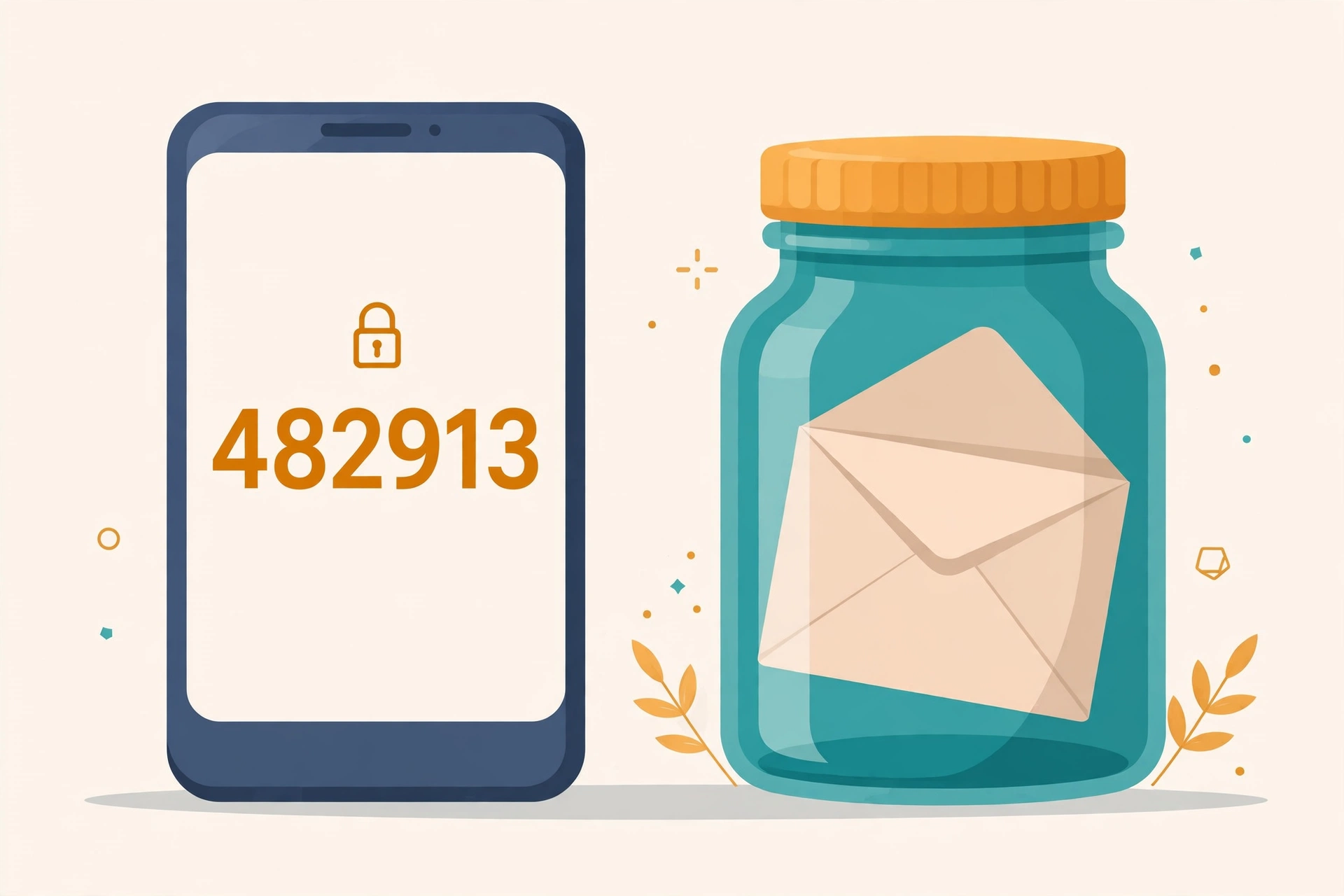
Short answer: do not retype the code — copy it straight out of the message and paste it into the form. An OTP code is only useful for a few minutes, and every second you spend looking back and forth between two screens is a second closer to expiry, plus a real chance of typing a wrong digit. Copy-and-paste removes both problems at once.
The catch is that "copy the code" only works if you copy the right number. Verification emails often carry more than one number — a reference number, an order number, a support ticket number — and pasting any of those into the code box will fail every time. So the fast way is really two steps: find the number that is labelled as your code, then copy that one number exactly.
Why retyping fails
Retyping a six-digit code feels trivial, and most of the time it works. The failures come from the edges. Digits that look alike — 0 and O, 1 and I, 5 and S — are easy to confuse when you glance at a code, look away to type it, and glance back. On a phone keyboard the risk is worse: autocorrect does not help with numbers, and a fat-fingered digit is invisible until the form rejects it.
Then there is the clock. Most codes expire in five to ten minutes, and some in far less. A retype that takes thirty seconds is fine; a retype after you went to make coffee is not. And a failed attempt is not free either: many services lock the code, or the account, after a few wrong entries, which turns a small typing slip into a wait-and-request-again loop. Copy-and-paste has none of these failure modes — the clipboard does not misread digits, and it does not forget them halfway across the screen.
Where the code hides
The code is almost always in one of three places. First, the message body, usually on its own line and labelled — "Your verification code is 482913" or "Use this code to continue". That labelled number is the one you want. Second, the subject line, which some senders use as a shortcut ("Your 482913 is your verification code"). Third, a button or box inside the message that says "Copy code" — press it and the code is on your clipboard without you selecting anything.
What trips people up is the other numbers. A message can carry a reference number at the top ("Reference: 884120") that looks exactly like a code and is not one. If you paste a reference number into the code box, the site will tell you the code is wrong, and it is telling the truth — that number was never a code. When a paste fails, the first thing to check is not the inbox, it is the message: find the number that is actually labelled as the code, and compare it digit by digit with what you pasted.
The copy-and-paste method
First, keep the verification form open in one tab or app and the inbox in another — do not close the form to go and find the code, or you may have to start the request again. Second, open the message and look for the labelled code or the copy button. In TempJar, an open inbox refreshes every 15 seconds, so the message usually appears without a reload, and the copy button copies the labelled code from the message rather than the first number it finds.
Third, paste immediately, in the same motion: switch to the form, click the code field, paste. Do not paste into a notes app first, do not read the code aloud to yourself, and do not try to memorise it — every extra step is a chance to drop or change a digit. If the form has separate boxes for each digit, pasting usually fills them all at once; if it does not, paste into the first box and check that all six digits landed before you press verify.
Fourth, check the count before you submit. A pasted code with a trailing space, or a code that lost its first digit because you started selecting halfway through it, will fail — and the error message will not tell you why. Count the digits in the field. Six means six, not five and a space.
On a phone
On a phone the same method applies, with one extra trap: switching apps. The classic mobile mistake is reading the code in the inbox, switching to the app that asked for it, and typing from memory — then discovering the app reloaded and the code field is empty, or that you transposed two digits on the way over. Copy first, then switch, then paste. The clipboard survives the app switch; your memory of six digits under time pressure often does not.
One more phone note: an SMS code can sometimes autofill, but an email code cannot — there is no equivalent of SMS autofill for a code sitting in an inbox. So the copy button in your inbox is the phone equivalent of autofill, and it is worth using. And if the code appears in a notification preview or in the subject line, open the message anyway before you copy: previews can truncate, and the subject sometimes shows a different number from the body.
When copying does not work
Sometimes there is no copy button, or the button copies nothing. Then select the digits yourself: long-press or double-click the code to highlight exactly the six digits, copy, and paste. If the selection keeps grabbing surrounding text, paste into the code field anyway and delete the extra characters — most code fields ignore letters, but a space or a dash in the middle will break the match.
If a correct-looking paste still fails, run through the short list before requesting a new code: is this the labelled code, not a reference number? Are all six digits there, with no extra space? Has the code expired — did more than a few minutes pass since it arrived? Was it already used once? Only when all four answers are right and it still fails is it time to request a fresh code — and when you do, wait for the newest message and ignore the older ones, because the newest code replaces the earlier ones.
Honest limits
Copy-and-paste makes the code arrive intact, but it cannot fix a code that was never going to work. A code that has expired will fail however perfectly you copy it. A site that blocks disposable email domains will not send the code at all, so there is nothing to copy — that is the site's policy, and the answer is a real address for that service. And requesting code after code because each paste failed can lock you out: most services limit attempts, so fix the copy before you ask for another one.
The standing rule applies here too: never use a temporary address for banking, work, or any account you cannot afford to lose. A fast copy is for low-stakes sign-ups, trials and downloads — the places where a temp inbox belongs.
The rule of thumb: copy the labelled code, paste it straight into the form, and count the digits before you press verify. The clipboard does not misread digits — and the fastest code is the one you never had to type.
Frequently asked questions
What is the fastest way to copy an OTP code?
Use the copy button in your inbox or email app instead of retyping the digits. Open the message, press Copy code (or click the code itself if it is clickable), switch to the verification form, and paste. Retyping from memory adds a look-and-type round trip and a real chance of a wrong digit — and a wrong digit costs you the attempt.
Why does the code I copied not work?
The most common cause is copying the wrong number: many messages carry a reference or order number next to the real code, and the reference number will always be rejected. Check the message for the number labelled as your code or verification code, and make sure you copied all six digits with no extra space. If the code has expired, or you already used it once, you need a fresh one — pasting the old code again will not work.
Can I copy an OTP code on my phone?
Yes. On a phone, open the message in your inbox, use the copy button if the inbox offers one, and paste straight into the app or form that asked for the code. Avoid switching between apps while trying to remember the digits — that is where most mobile mistakes happen. If the code is in the subject line, open the message anyway: the subject sometimes shows a shortened or different number.
Try it free: Create your TempJar inbox → — pick a handle, set a password, save it in a password manager, and keep the inbox for 6 months.